How to clean up the QuickBooks Online dashboard
By the DeclutterMe team · Last checked October 31, 2026
Partly. QuickBooks Online lets you add and remove widgets and choose which create actions show. But we found no way to remove the Business Feed. There's no documented way to hide the carousel, the "Suggestions for you" cards or the Feed menu link.
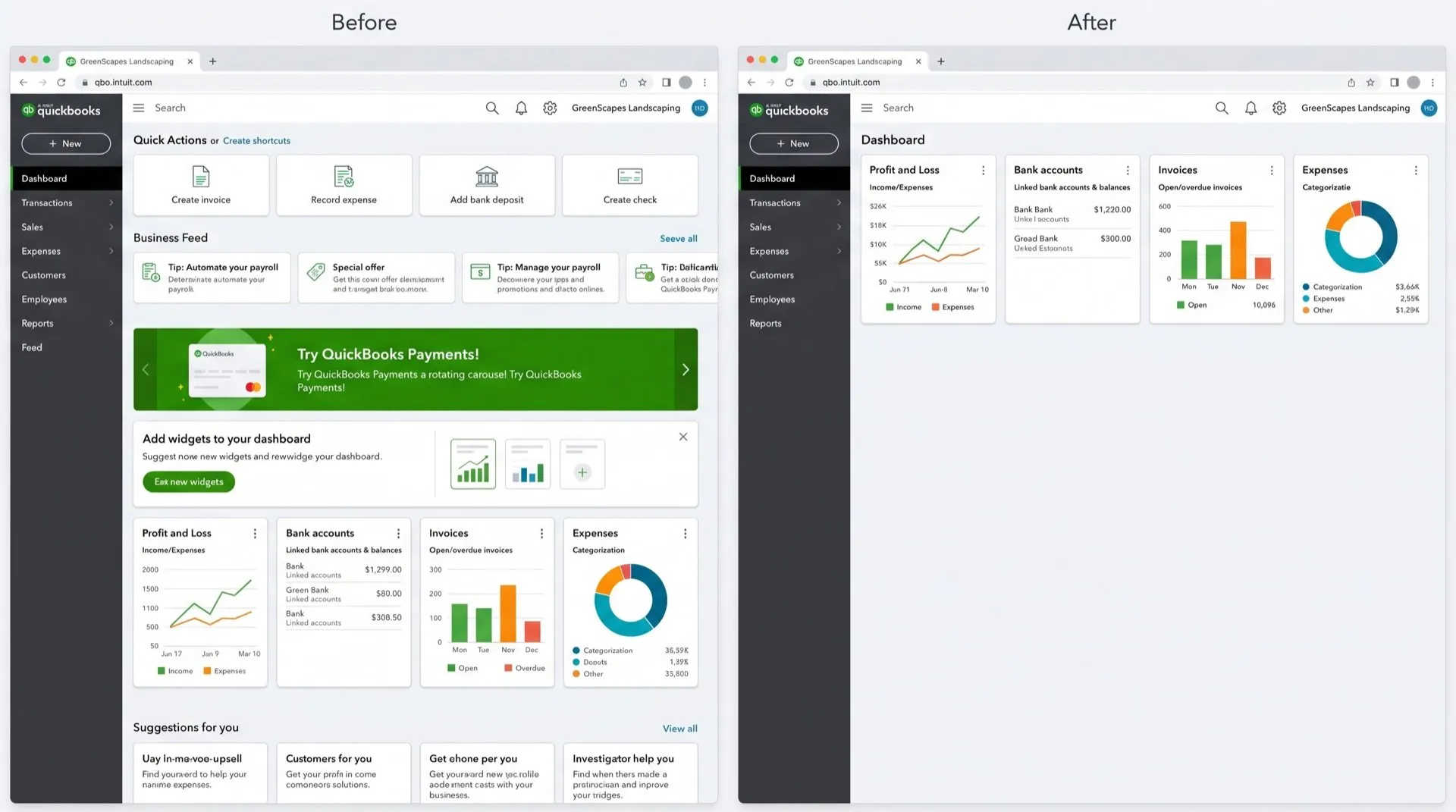
You open QuickBooks to check your numbers and land on a page full of other things. There’s a row of create buttons, a feed of tips, a rotating banner and cards suggesting products to try. The figures you came for are further down.
Where the clutter shows up
- Create actions, a row of shortcuts at the top of the home page.
- Widget suggestions, a panel suggesting widgets to add.
- Business Feed, a feed of tips and promotions across the top of the dashboard.
- The carousel, a rotating banner.
- Suggestions for you, upsell cards at the bottom of the dashboard.
- Feed in the left menu.
Can you turn it off in QuickBooks?
Partly. Intuit’s help article covers removing widgets and choosing which create actions appear. It doesn’t cover the rest.
- On the Home page, select Customize in the top-right corner.
- Select Add or remove widgets.
- Untick the widgets you don’t want, then select Save.
- For create actions, select Show all to choose which ones appear. You can show up to 10.
What this doesn’t fix:
- The Business Feed. We found no way to turn it off for good. Clicking the X hides one topic, and the feed fills up again the next day.
- The carousel and “Suggestions for you”. We found no setting for either.
- Feed in the left menu. Intuit’s navigation guide lets you choose pinned apps, but doesn’t say Feed can be removed.
Clean it up in one go
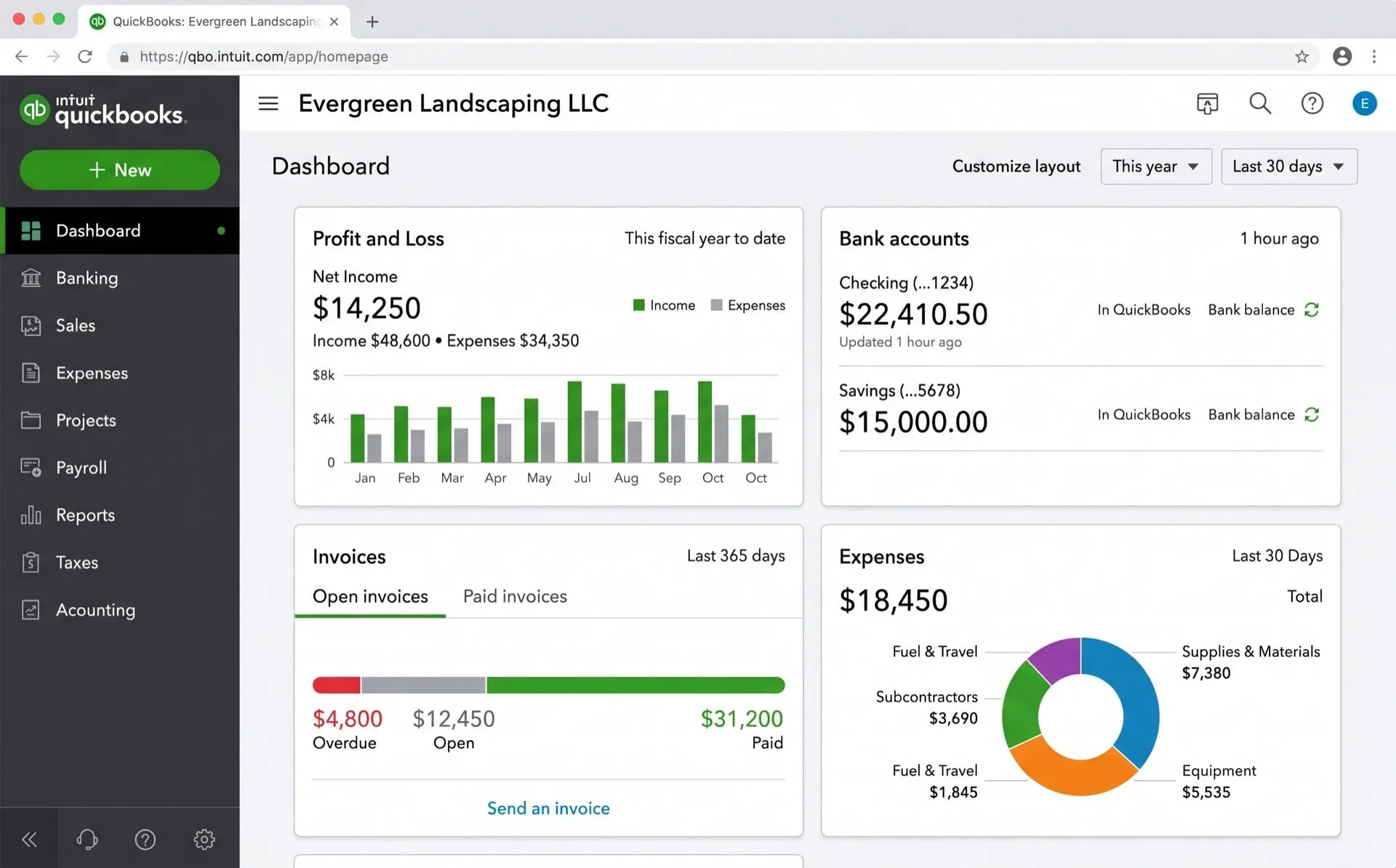
DeclutterMe removes the create actions row, the widget suggestions panel and the Business Feed. It also removes the carousel, the “Suggestions for you” cards and the Feed link in the left menu. Everything the create row and carousel offered is still in the + New button and the left menu. Your own widgets, such as profit and loss and bank accounts, stay where you put them.
Sources
We checked this guide against these pages on October 31, 2026.
Switch it off for good with DeclutterMe
- Hide "Create actions" on the dashboardRemoves the row of create shortcuts at the top of the home page. The + New button already does this.
- Hide widget suggestionsRemoves the panel suggesting widgets to add to your dashboard.
- Hide the Business FeedRemoves the feed of tips and promotions from the home page.
- Hide the dashboard carouselRemoves the rotating banner on the home page. Everything in it is already in the left menu.
- Hide "Suggestions for you"Removes the upsell cards at the bottom of the dashboard.
- Remove "Feed" from the left menuRemoves the Feed link from the left navigation.
Free for 1 fix of your choice. Nothing you read or type leaves your browser.
DeclutterMe is our product. We're not affiliated with or endorsed by the companies behind these apps.
More QuickBooks Online guides
- How to make QuickBooks Online bank transaction search show exact matches only
- How to hide "Contact experts" and QuickBooks Live prompts in QuickBooks Online
- How to stop QuickBooks Online "How likely are you to recommend" surveys
- How to turn off Intuit Intelligence in QuickBooks Online
- How to stop QuickBooks Online upgrade pop-ups