How to turn off JAX, the AI assistant in Xero
By the DeclutterMe team · Last checked October 31, 2026
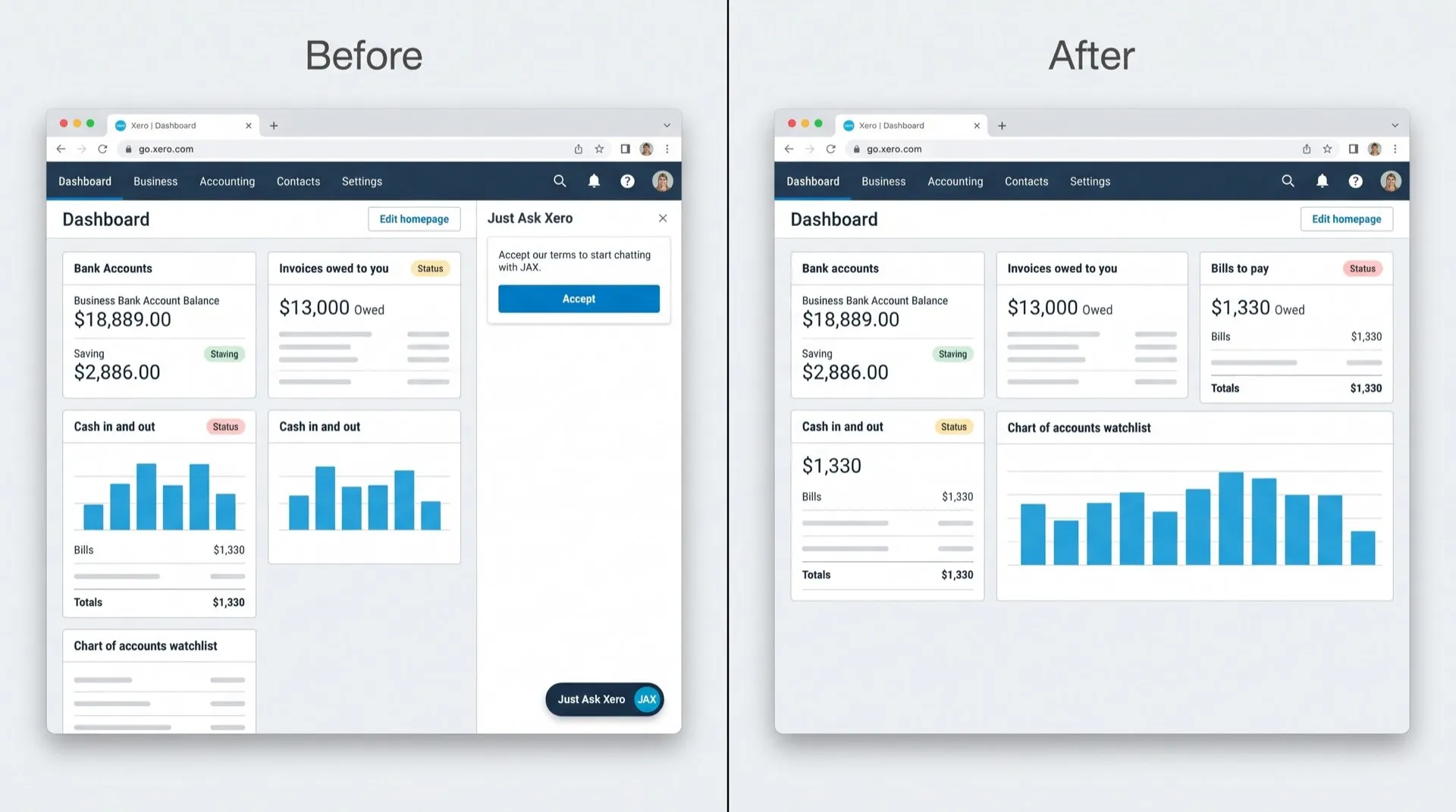
You can't turn JAX off in Xero. We found no setting for it, either for one user or for the whole organisation. It stays inactive until someone opens it and accepts the terms, but the launcher stays on screen.
JAX, short for “Just Ask Xero”, is the AI assistant built into Xero. If you’d rather not use it, or don’t want staff using it, you’ll find there’s no switch to turn it off.
Where it shows up
- The JAX launcher, which sits on screen as you move around Xero.
- The JAX panel, which opens when you click the launcher and asks you to accept its terms the first time.
Can you turn it off in Xero?
No. We found no setting that turns JAX off, either for you or for the whole organisation. JAX chat is on by default for every Xero customer, with no separate opt-in for each organisation.
What you can control:
- Don’t open it. JAX isn’t active until you open it and accept its terms. Leaving it closed means it does nothing.
- User roles. Admins can use user roles and permissions to limit what data each person can see. This controls access to data, not whether JAX appears.
Neither removes the launcher from the screen.
Hide it with DeclutterMe
DeclutterMe removes the “Just Ask Xero” launcher and panel, so it’s out of the way while you work. It doesn’t change any setting in your Xero organisation, and other users still see JAX unless they turn on the same fix. It never hides failed-payment warnings, tax deadlines, security alerts or outage notices.
Switch it off for good with DeclutterMe
- Hide the JAX AI assistantRemoves the "Just Ask Xero" launcher and panel.
Free for 1 fix of your choice. Nothing you read or type leaves your browser.
DeclutterMe is our product. We're not affiliated with or endorsed by the companies behind these apps.