How to hide promoted and suggested posts on LinkedIn
By the DeclutterMe team · Last checked October 31, 2026
Partly. LinkedIn says none of its ad settings stop you seeing ads, and you can only hide them one post at a time. Its "Most recent posts" feed view is meant to show only people you follow, but there's no switch just for suggested posts. An extension can hide both automatically.
Scroll your LinkedIn feed and a good share of it is from people you don’t follow. There are ads marked Promoted, posts marked Suggested, and more and more text that reads like AI wrote it.
Hide them one at a time
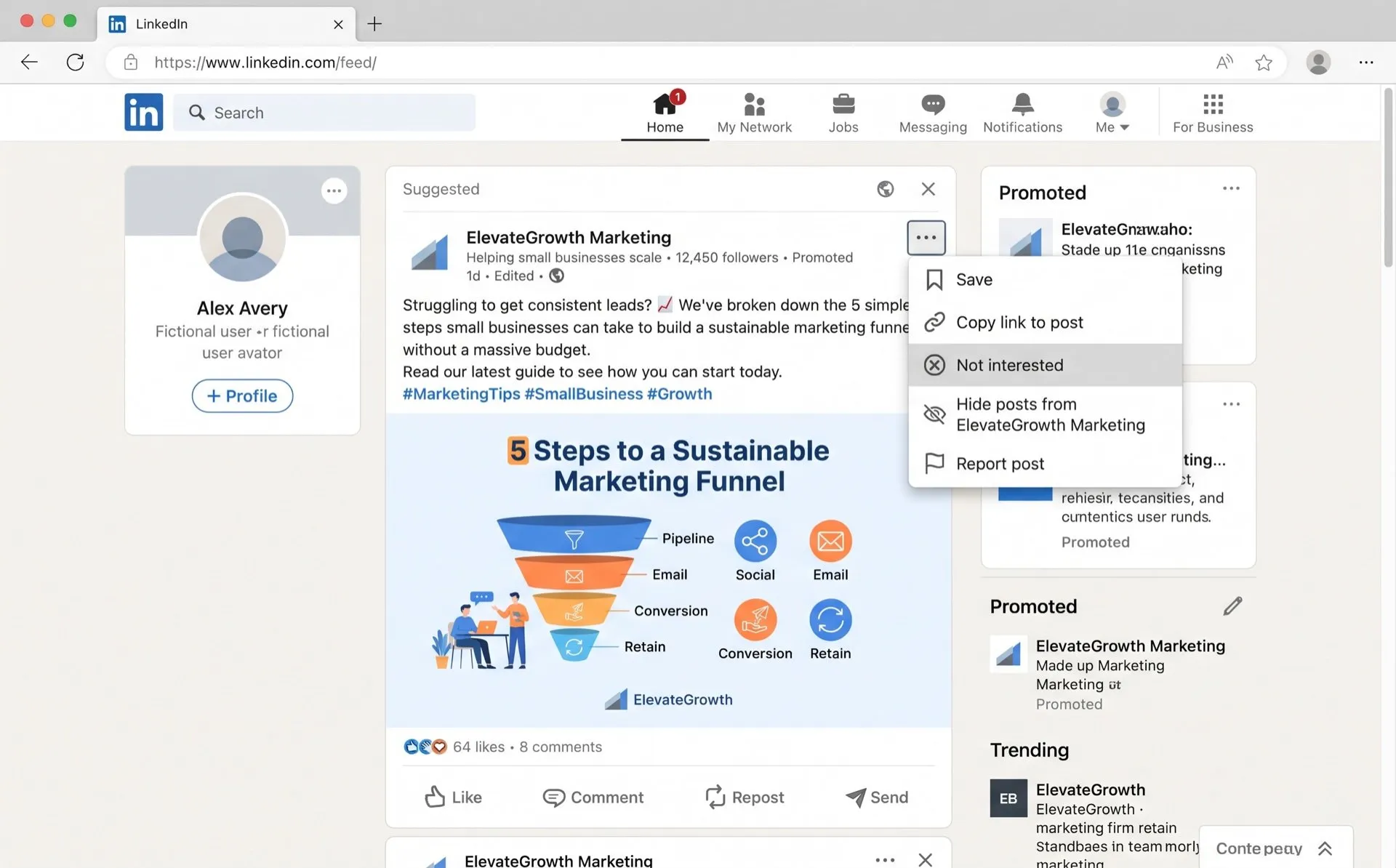
- Click the More icon (⋯) at the top right of the post.
- For a suggested post, choose Not interested, or the option to hide posts from that author. For an ad, LinkedIn’s help says to choose Hide this post.
- LinkedIn removes that post and uses your choice to adjust what it shows you.
The ad menu also has Why am I seeing this ad?, where you can say whether the ad was relevant. LinkedIn changes these labels from time to time, so yours may read slightly differently.
Is there a setting?
For ads, no. You can change ad preferences under Me > Settings & Privacy > Advertising data. But LinkedIn’s own help page says none of the ad settings opt you out of seeing ads. They change which data is used to pick your ads, and changes can take around 72 hours.
For suggested posts, partly. Under Me > Settings & Privacy > Account preferences > Preferred Feed View, choose Most recent posts. LinkedIn says this shows the latest posts first, only from people you follow. You lose the ranking that puts the most relevant posts first, and LinkedIn doesn’t say it changes ads.
A feed of only the people you follow
DeclutterMe removes ads and suggested posts from your feed as they load. What’s left comes from people and pages you chose to follow, in whichever order you prefer. It can also hide posts with several tell-tale signs of AI writing, not just any post with an em dash.
Sources
We checked this guide against these pages on October 31, 2026.
Switch it off for good with DeclutterMe
- Hide promoted postsRemoves ads from your feed.
- Hide "Suggested" postsShows only posts from people and pages you follow.
- Hide AI-written postsHides posts with several tell-tale signs of AI (em-dashes, stock phrases, emoji bullet lists). Not just any post with an em-dash.
Free for 1 fix of your choice. Nothing you read or type leaves your browser.
DeclutterMe is our product. We're not affiliated with or endorsed by the companies behind these apps.