How to hide LinkedIn Premium upsells
By the DeclutterMe team · Last checked October 31, 2026
No. LinkedIn has no setting that removes "Try Premium" links and offers from the site. You can turn off some promotional emails in your notification settings, but the prompts on the page stay. An extension can hide them.
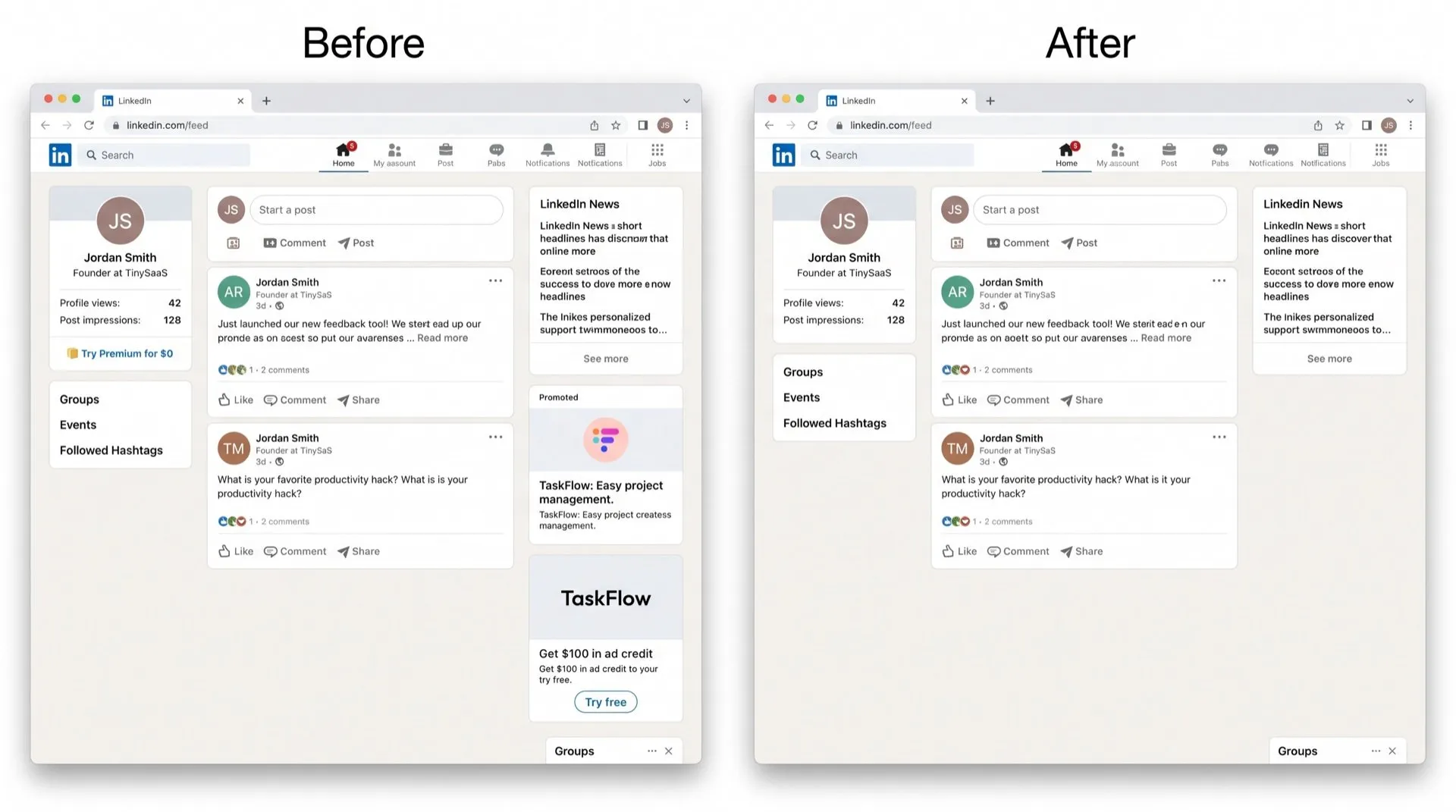
LinkedIn is free to use, and it reminds you often that it would like you to pay. “Try Premium” links sit beside your profile, under job posts and in the sidebar, alongside offers of free ad credit and sidebar ads.
Where they show up
- “Try Premium” links and buttons, and “Reactivate Premium” if you’ve subscribed before.
- Ad-credit offers inviting you to try LinkedIn advertising.
- Sidebar ads next to the feed.
Can you turn them off in LinkedIn?
No. LinkedIn’s settings don’t include an option for its own in-app offers. The Advertising data settings only change how ads are personalized, and LinkedIn says none of them opt you out of seeing ads.
What you can control is email:
- Click Me, then Settings & Privacy.
- Click Notifications in the left pane.
- Open a category and switch off the email types you don’t want. You can also use the Unsubscribe link at the bottom of any LinkedIn email.
This stops some promotional email. It doesn’t change what you see on linkedin.com.
Hide them on the page
DeclutterMe removes “Try Premium” links, ad-credit offers and sidebar ads from LinkedIn. If you do have Premium, nothing about your subscription changes.
Sources
We checked this guide against these pages on October 31, 2026.
Switch it off for good with DeclutterMe
- Hide Premium upsellsRemoves "Try Premium" links, ad-credit offers and sidebar ads.
Free for 1 fix of your choice. Nothing you read or type leaves your browser.
DeclutterMe is our product. We're not affiliated with or endorsed by the companies behind these apps.