How to remove Copilot from your Teams chat list
By the DeclutterMe team · Last checked October 31, 2026
Partly. Microsoft says you can unpin Copilot Chat and Teams will remember it, but your organisation's policies can pin it back, and only a Teams admin can change those. In Teams on the web, a browser extension can hide the Copilot chat and buttons for you alone.
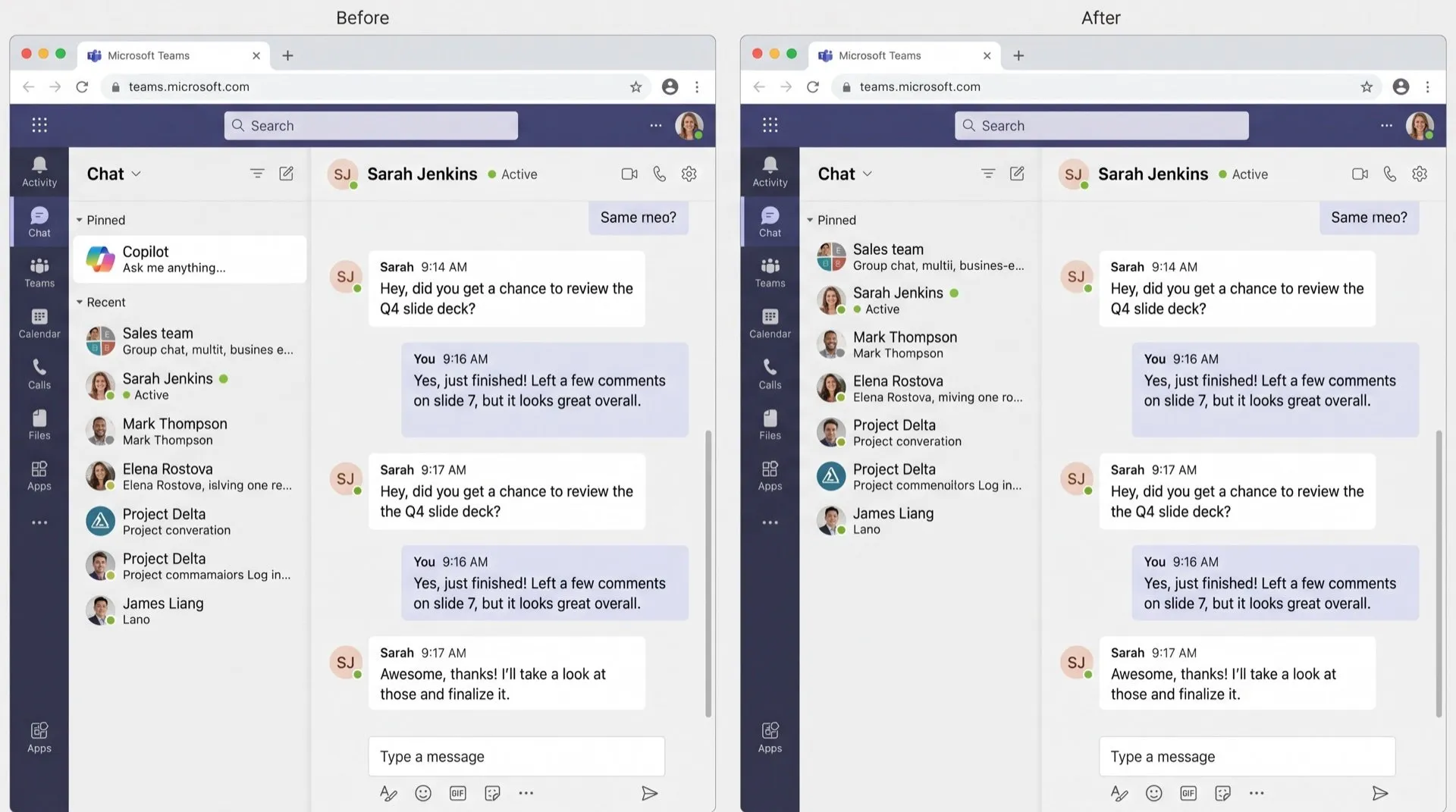
Copilot now sits at the top of your Teams chat list, above the people you actually talk to. If you don’t use it, it pushes your real conversations down and is easy to click by mistake.
Where it shows up
- The chat list: a pinned Copilot entry at the top of your chats.
- The app bar: a Copilot app on the left side of Teams.
- Pop-ups: a “Pin Copilot” prompt that some people see again and again.
Can you turn it off in Teams?
Partly, and how much depends on your organisation.
What you can try yourself. Microsoft’s admin documentation says that if you unpin Copilot Chat, Teams respects that choice in future sessions. Whether you’re allowed to unpin it depends on your organisation’s app setup policy. The same page also says that, since January 2026, Copilot Chat can’t be unpinned from the navigation in any organisation. So what you can do may differ from what you read elsewhere.
What your admin can do. Pinning in Teams is controlled only from the Teams admin center:
- Go to the Teams admin center and open the app setup policy assigned to you.
- Remove Copilot from the policy’s Pinned apps, or block the Microsoft 365 Copilot app under Manage apps.
- Changes can take up to 48 hours to reach users.
What this doesn’t fix
- Blocking the app removes Copilot for everyone in that policy, not just people who don’t want it.
- We found no “never show again” option for the “Pin Copilot” prompt.
- Microsoft planned to remove the Copilot entry from the chat list in October 2026, then cancelled the change, so the entry is staying for now.
Hide Copilot in Teams on the web
DeclutterMe removes the pinned Copilot chat from the top of your Teams chats. With Hide Copilot buttons also on, it removes the Copilot buttons in Teams too. It only changes what you see in your own browser, so your colleagues and your admin’s settings are untouched. Switch it back on any time from the extension.
Sources
We checked this guide against these pages on October 31, 2026.
Switch it off for good with DeclutterMe
- Hide Copilot in the Teams chat listRemoves the pinned Copilot chat from the top of your Teams chats.
- Hide Copilot buttonsRemoves the Copilot buttons from the Word, Excel and PowerPoint ribbons, the floating Copilot icon next to your text, and Copilot in Teams.
Free for 1 fix of your choice. Nothing you read or type leaves your browser.
DeclutterMe is our product. We're not affiliated with or endorsed by the companies behind these apps.