How to turn off Copilot in Word, Excel and PowerPoint on the web
By the DeclutterMe team · Last checked October 31, 2026
Not in the web versions. Microsoft's "Enable Copilot" checkbox exists only in the Windows and Mac desktop apps, one app at a time, and only for personal Microsoft accounts. In Word, Excel and PowerPoint on the web, hiding the buttons with a browser extension is the practical option.
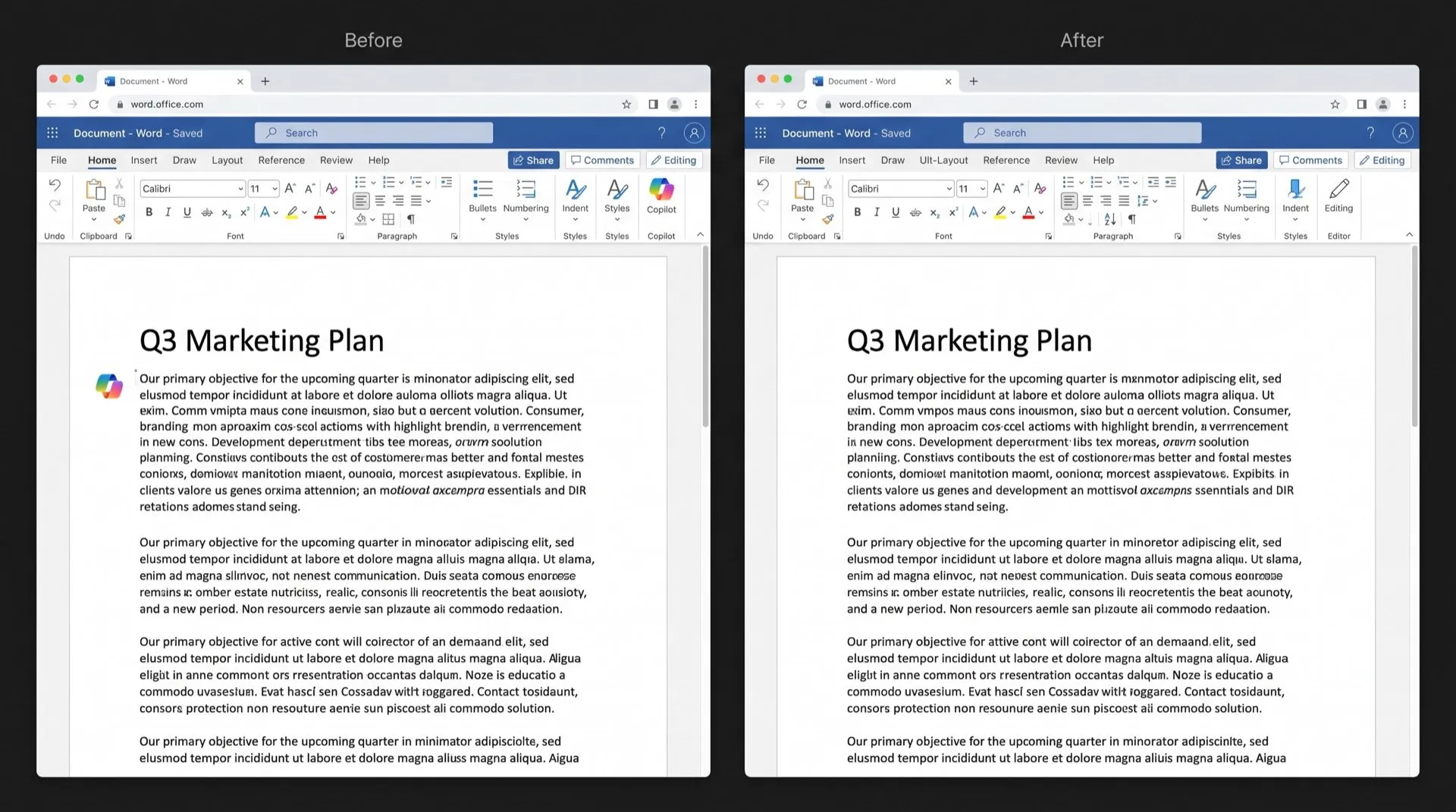
Copilot now has a button on the ribbon in Word, Excel and PowerPoint. A small Copilot icon also floats next to your text as you type. If you don’t use it, it takes up space and gets in the way of the tools you do use.
Where Copilot shows up
- The ribbon: a Copilot button on the Home tab of Word, Excel and PowerPoint.
- Next to your text: a floating Copilot icon in the margin beside the paragraph or cell you’re working on.
- Teams: Copilot buttons inside Teams on the web.
Can you turn it off in Microsoft 365?
Only in the desktop apps. Microsoft says plainly that you can’t turn off Copilot in the web, iOS or Android versions of Word, Excel or PowerPoint.
In the Windows desktop apps, with a personal Microsoft account:
- Open Word, Excel or PowerPoint.
- Go to File > Options > Copilot.
- Clear Enable Copilot and click OK.
- Close and reopen the app.
On a Mac, the same checkbox is under the app menu, Preferences > Authoring and Proofing Tools > Copilot.
What this doesn’t fix
- Each app has its own checkbox, and it only applies to that app on that computer. Word and Excel need to be changed separately.
- It needs a recent version: Word 2412, Excel 2501 or PowerPoint 2501 on Windows.
- The setting isn’t available when you’re signed in with a work or school account. In that case, Copilot is managed by your organisation’s IT admin.
- It does nothing for the web versions in your browser.
The privacy-setting workaround, and its catch
Microsoft suggests turning off “experiences that analyze your content” in your account privacy settings as a fallback. This does disable Copilot, but it also turns off other features. They include text predictions in Word, PowerPoint Designer, suggested replies in Outlook and automatic alt text for images. The change applies to all your Microsoft 365 apps at once.
Hide the Copilot buttons in your browser
DeclutterMe removes the Copilot buttons from the Word, Excel and PowerPoint ribbons, the floating Copilot icon next to your text, and Copilot in Teams. Your other features, including text predictions and Designer, stay as they are. Switch it back on any time from the extension.
Sources
We checked this guide against these pages on October 31, 2026.
Switch it off for good with DeclutterMe
- Hide Copilot buttonsRemoves the Copilot buttons from the Word, Excel and PowerPoint ribbons, the floating Copilot icon next to your text, and Copilot in Teams.
Free for 1 fix of your choice. Nothing you read or type leaves your browser.
DeclutterMe is our product. We're not affiliated with or endorsed by the companies behind these apps.