How to stop "What's new" tips and surveys in Outlook on the web
By the DeclutterMe team · Last checked October 31, 2026
Partly. A Microsoft 365 admin can turn off in-product surveys for work and school accounts with a policy. We found no setting that stops "What's new" tips or callouts, and nothing for personal accounts. A browser extension can close both as they appear.
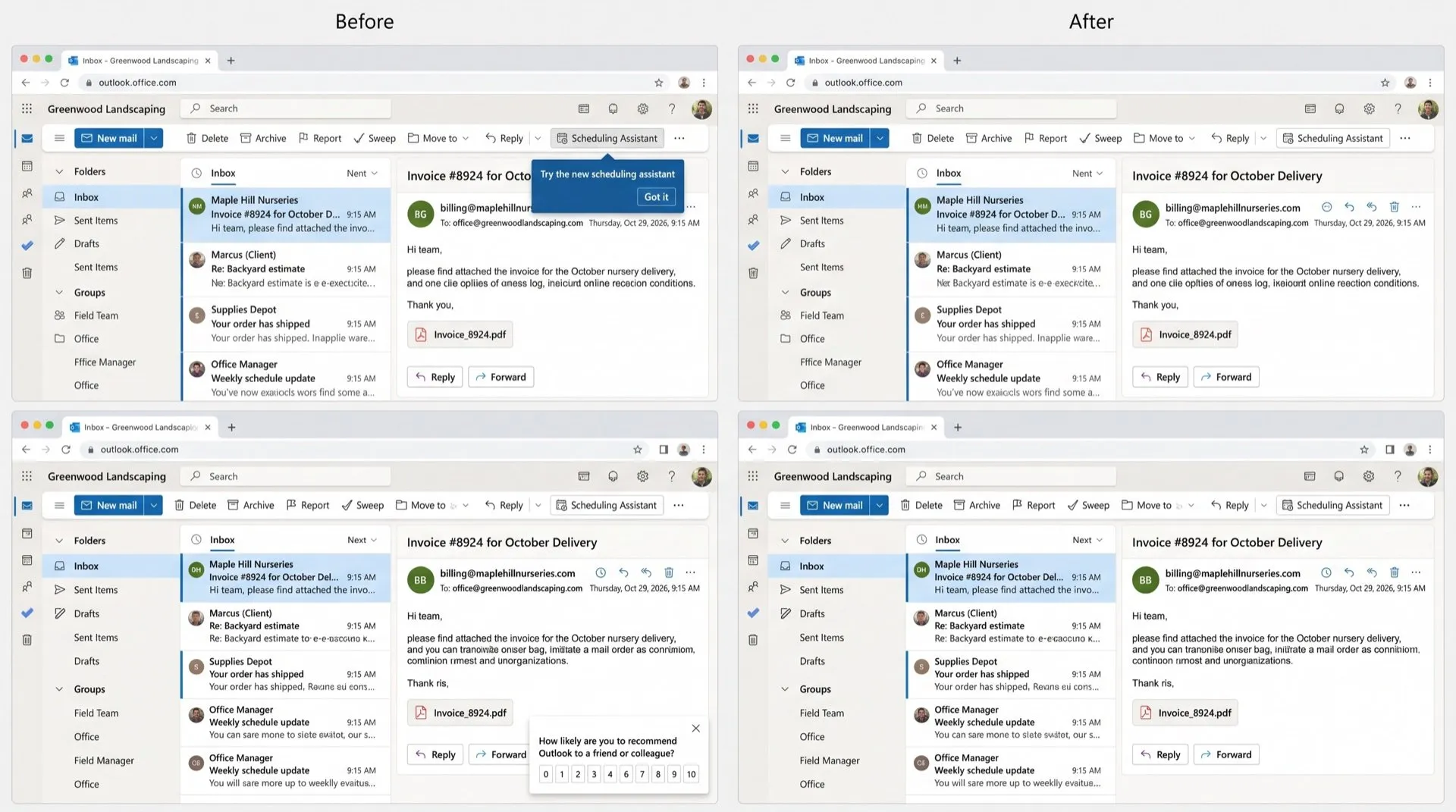
You open Outlook to deal with your email, and a box points at a new button you didn’t ask about. Later, another box asks how likely you are to recommend Outlook to a friend. Each one is small, but they stop you mid-task.
Where they show up
- Feature tours: “What’s new” walkthroughs after an update.
- Callouts: “Try the new…” bubbles pointing at features in the toolbar.
- Surveys: “How likely are you to recommend…” pop-ups, usually in the corner of the screen.
Can you turn them off in Outlook?
Surveys: for work and school accounts, an admin can. Microsoft’s feedback policies cover Outlook, and one of them is Allow users to receive and respond to in-product surveys from Microsoft.
- Your Microsoft 365 admin opens Cloud Policy service for Microsoft 365.
- They search for “survey” and set that policy to Disabled for the right group of people.
- It can take a few hours for the change to reach Outlook.
The same policy also stops surveys in Word, Excel, PowerPoint and Teams.
Tips and tours: we found no setting in Outlook on the web that turns off “What’s new” tours or “Try the new…” callouts. You can close each one, but new ones arrive with the next update.
What this doesn’t fix
- With a personal Outlook.com account, we found no way to stop surveys.
- The survey policy is admin only. You can’t change it from your own Outlook settings.
- The policy doesn’t affect “What’s new” tours or callouts.
Close them automatically
DeclutterMe closes feature tours and “Try the new…” callouts in Outlook on the web. It also closes “How likely are you to recommend…” surveys as soon as they appear. It never hides security alerts, storage-full warnings or outage notices, so the messages that matter still reach you.
Sources
We checked this guide against these pages on October 31, 2026.
Switch it off for good with DeclutterMe
- Dismiss "What's new" tipsCloses feature tours and "Try the new…" callouts.
- Dismiss feedback surveysCloses "How likely are you to recommend…" surveys automatically.
Free for 1 fix of your choice. Nothing you read or type leaves your browser.
DeclutterMe is our product. We're not affiliated with or endorsed by the companies behind these apps.