How to remove Gemini from Google Docs, Sheets and Drive
By the DeclutterMe team · Last checked October 31, 2026
Partly. Turning off "Smart features in Google Workspace" in Gmail settings switches off Gemini features in Docs, Sheets and Drive, but also other features, and the buttons may stay. Admins on some editions can turn Gemini off for everyone. To hide just the buttons and pop-ups, use a browser extension.
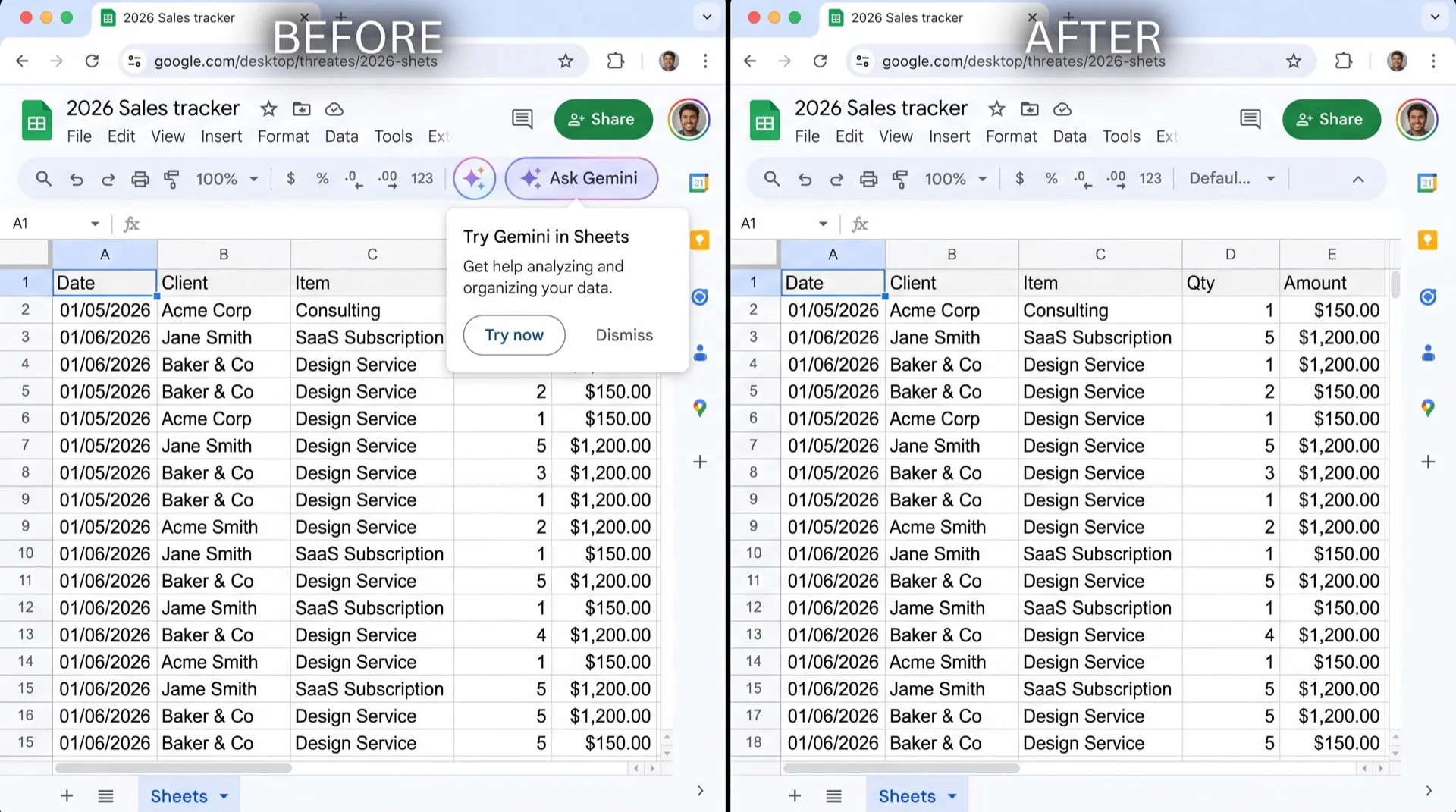
Google Docs, Sheets, Slides and Drive now have Gemini buttons in the toolbar. There’s also a Gemini side-panel button in the corner, and pop-ups inviting you to try it. If you just want to edit a spreadsheet, it’s a lot of extra buttons.
Where Gemini shows up
- Ask Gemini buttons in Docs, Sheets, Slides and Drive.
- The Gemini side-panel button at the top right of each app.
- “Suggest file moves” in Drive, which offers to reorganise your files.
- Pop-ups such as “What’s new” and “Try Gemini”.
Can you turn it off in Google Docs?
Partly. There’s no Gemini switch inside Docs, Sheets or Drive. The setting lives in Gmail and covers all of Workspace.
- Open Gmail, click the gear icon, then See all settings.
- On the General tab, scroll to Google Workspace smart features.
- Click Manage Workspace smart feature settings.
- Turn off Smart features in Google Workspace and click Save.
What this costs you
Google says this switch also turns off personalised search in Drive, events from Gmail appearing in Calendar, and personalised Workspace recommendations. We found that Gemini icons can stay visible afterwards, and clicking one asks you to turn smart features back on.
In Docs, the Gemini menu has bottom bar preferences, where you can turn off the “write with Gemini” bar at the bottom of the page. That removes the bar only.
For work accounts
A Workspace admin can turn Gemini off in the Admin console under Generative AI > Gemini for Workspace > Feature access. Docs, Sheets, Slides, Drive and Forms are switched together, not one by one. This is only available on some editions, such as Enterprise Standard and Enterprise Plus.
Hide the buttons and close the pop-ups
DeclutterMe removes the Ask Gemini buttons and the Gemini side-panel button from Docs, Sheets, Slides and Drive, plus Drive’s “Suggest file moves”. With Dismiss feature tips on, it also closes “What’s new” and “Try Gemini” pop-ups. Drive search and your other features keep working. Switch it back on any time from the extension.
Sources
We checked this guide against these pages on October 31, 2026.
Switch it off for good with DeclutterMe
- Hide Gemini buttonsRemoves "Ask Gemini" buttons and the Gemini side-panel button from Docs, Sheets, Slides and Drive, plus Drive's "Suggest file moves".
- Dismiss feature tipsCloses "What's new" and "Try Gemini" pop-ups in Docs, Sheets, Slides and Drive.
Free for 1 fix of your choice. Nothing you read or type leaves your browser.
DeclutterMe is our product. We're not affiliated with or endorsed by the companies behind these apps.